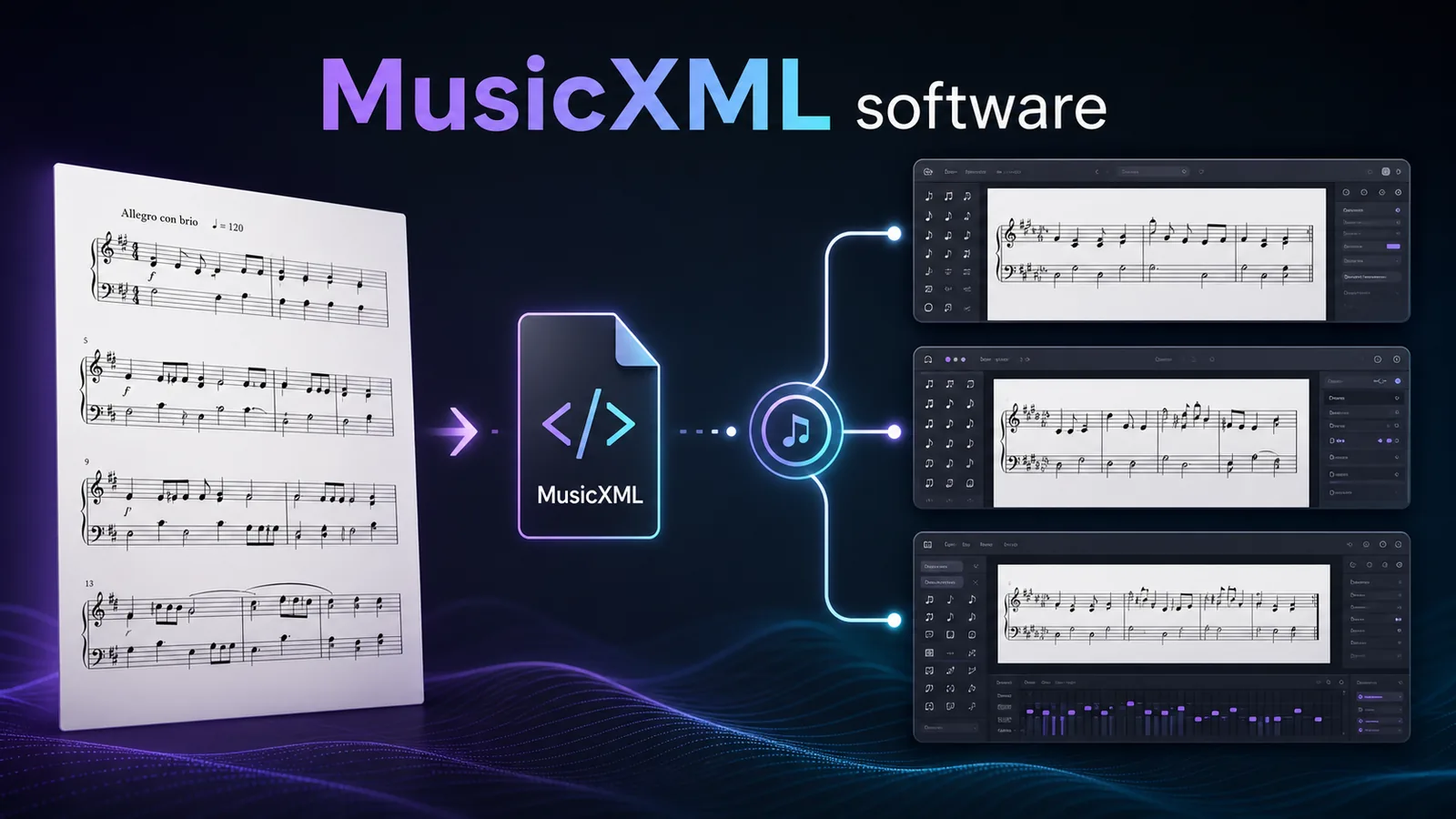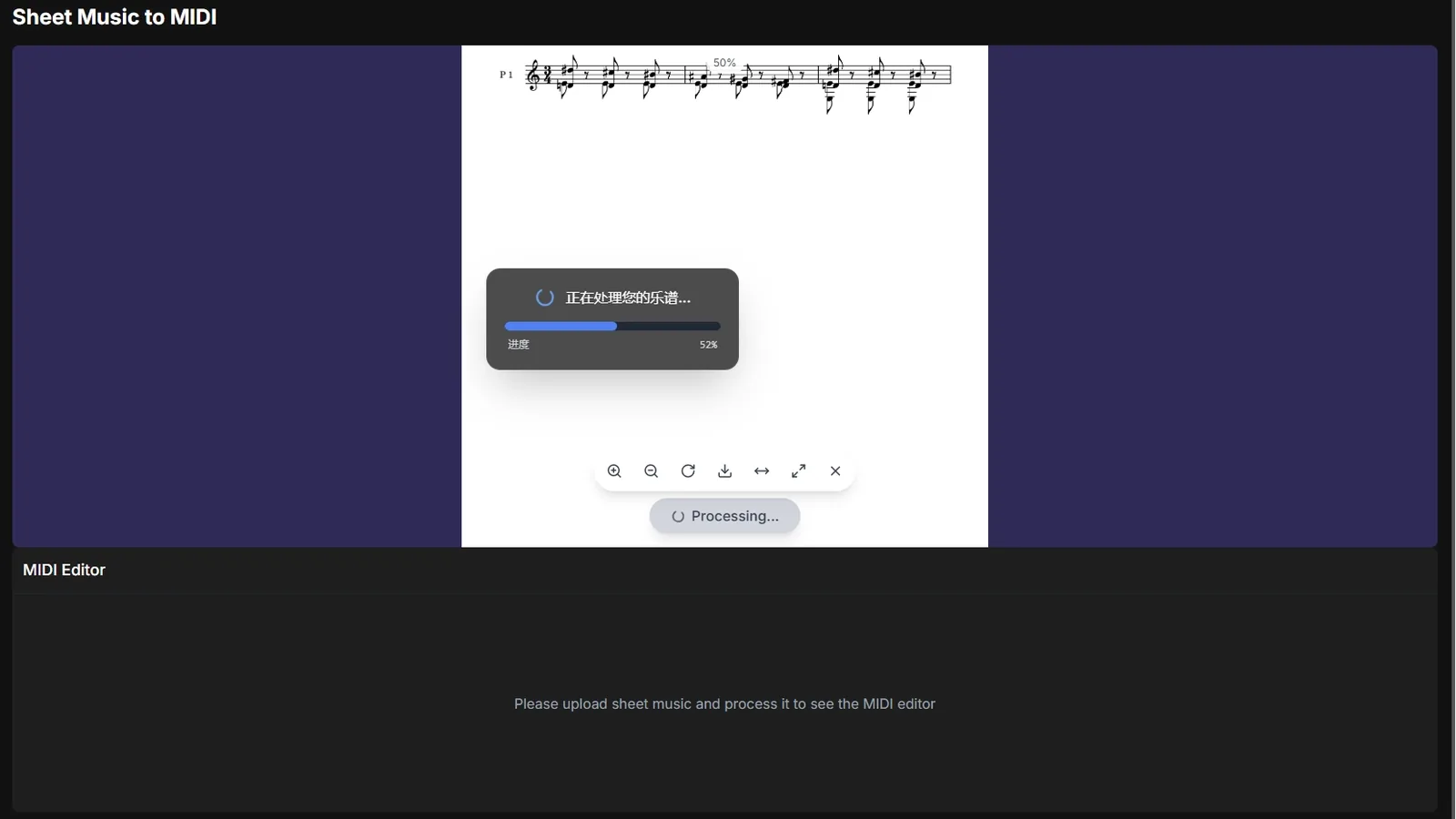
The best PDF to MIDI converter depends first on how your PDF was made. For a scan of printed sheet music, choose an optical music recognition (OMR) tool. For a PDF exported directly from notation software, PDFtoMusic Pro offers a different route that reads the digital score information. For a free desktop workflow, use Audiveris to produce MusicXML, then export MIDI from MuseScore Studio.
This comparison covers six distinct workflows, with particular attention to whether you can actually export a file for free. Choose by source type, editing needs, and destination software before comparing subscriptions or licenses.
Compare the PDF to MIDI converters
| Tool or workflow | Best fit | Source PDF | MIDI route | Free use and export boundary |
|---|---|---|---|---|
| Melogen AI | Browser conversion without a desktop installation | Digital or scanned printed scores | Download MIDI from the conversion workspace | Account and credit availability govern conversion; check the displayed allowance |
| PDFtoMusic Pro | PDFs exported from notation software | Digital score PDFs only, not scans | Direct MIDI export | Trial plays the first page and exports one page at a time |
| Audiveris + MuseScore Studio | Free desktop conversion with notation correction | Scanned printed scores | MusicXML from Audiveris → MIDI from MuseScore | Free, open-source workflow; requires two applications |
| PlayScore 2 | Mobile PDF playback and export | PDF scores and captured pages | MIDI export with the required subscription | PDF access and MIDI/MusicXML export require Professional |
| SmartScore 64 NE | Desktop recognition and correction | Scans and PDF scores | Direct MIDI export; edition determines other formats | Demo does not save MIDI; limited MusicXML trial exports exclude MIDI Edition |
| PhotoScore & NotateMe Ultimate | A scanning workflow alongside Sibelius | Printed scores, PDFs, and supported handwriting | MIDI or MusicXML export | Demo has saving disabled |
Feature and trial details were checked against the official pages linked below on October 24, 2026. The choices reflect workflow fit, supported formats, and export restrictions rather than a numerical recognition-accuracy ranking. Melogen Reviews and Melogen AI share the same brand.
Check whether your PDF is a scan or a digital score
A PDF is a container, not a guarantee of editable music. Two pages can look identical on screen while containing very different information:
- A scanned PDF contains an image of the page. Dust, skew, faint staff lines, and blurred noteheads become recognition problems. It needs OMR that can interpret those pixels.
- A digital score PDF exported from notation software can retain drawing and font information. PDFtoMusic Pro is designed for this input; it does not accept a scanned page simply because the file ends in
.pdf. - A mixed PDF may combine scans and digitally generated pages. Check representative pages instead of judging the entire document from its cover.
Zooming in helps identify obvious pixelation, but a high-resolution scan can still look sharp. The source application's export history is a better clue. If you still have the original notation project, export MIDI or MusicXML from that project and skip PDF recognition altogether.
1. Melogen AI for a browser-based PDF workflow
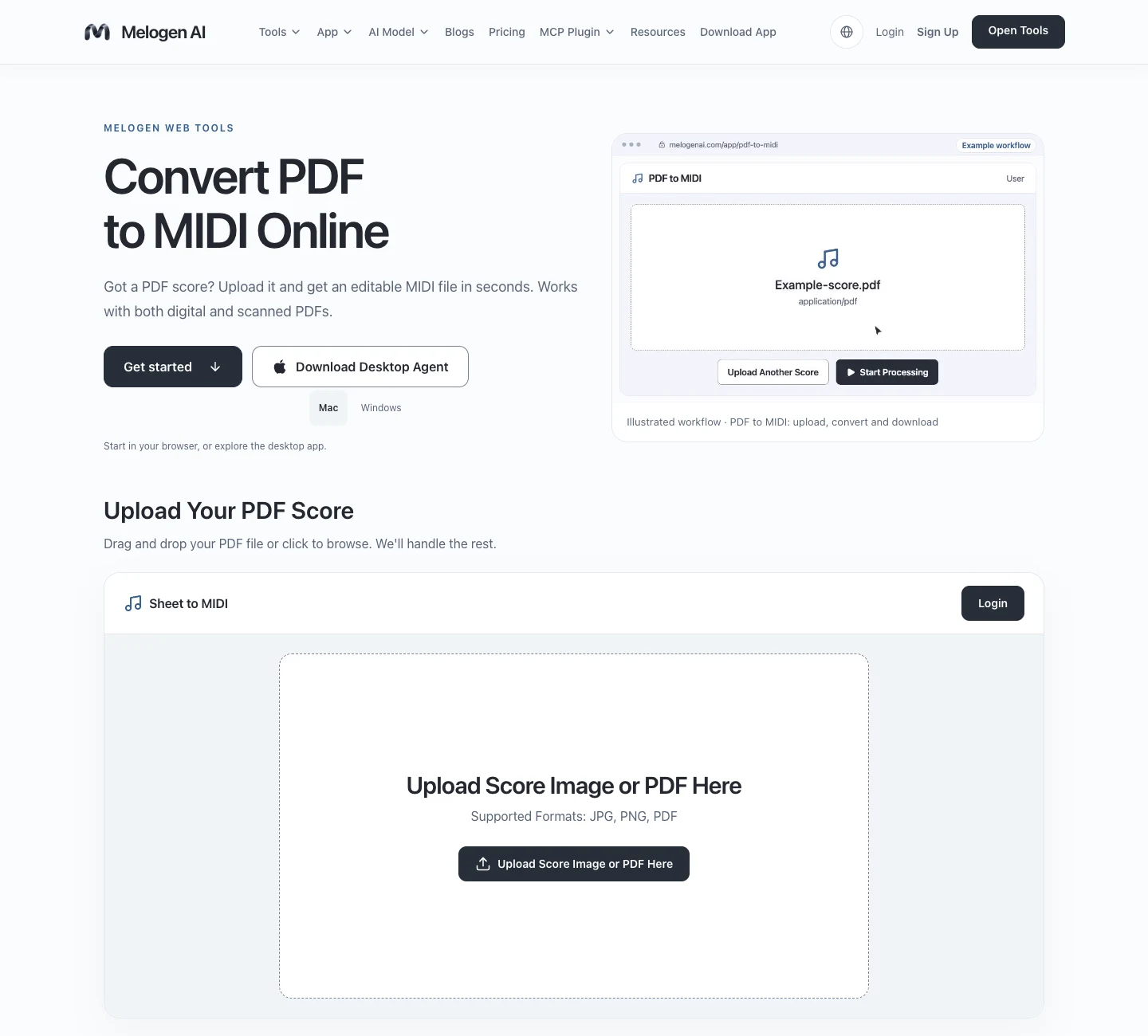
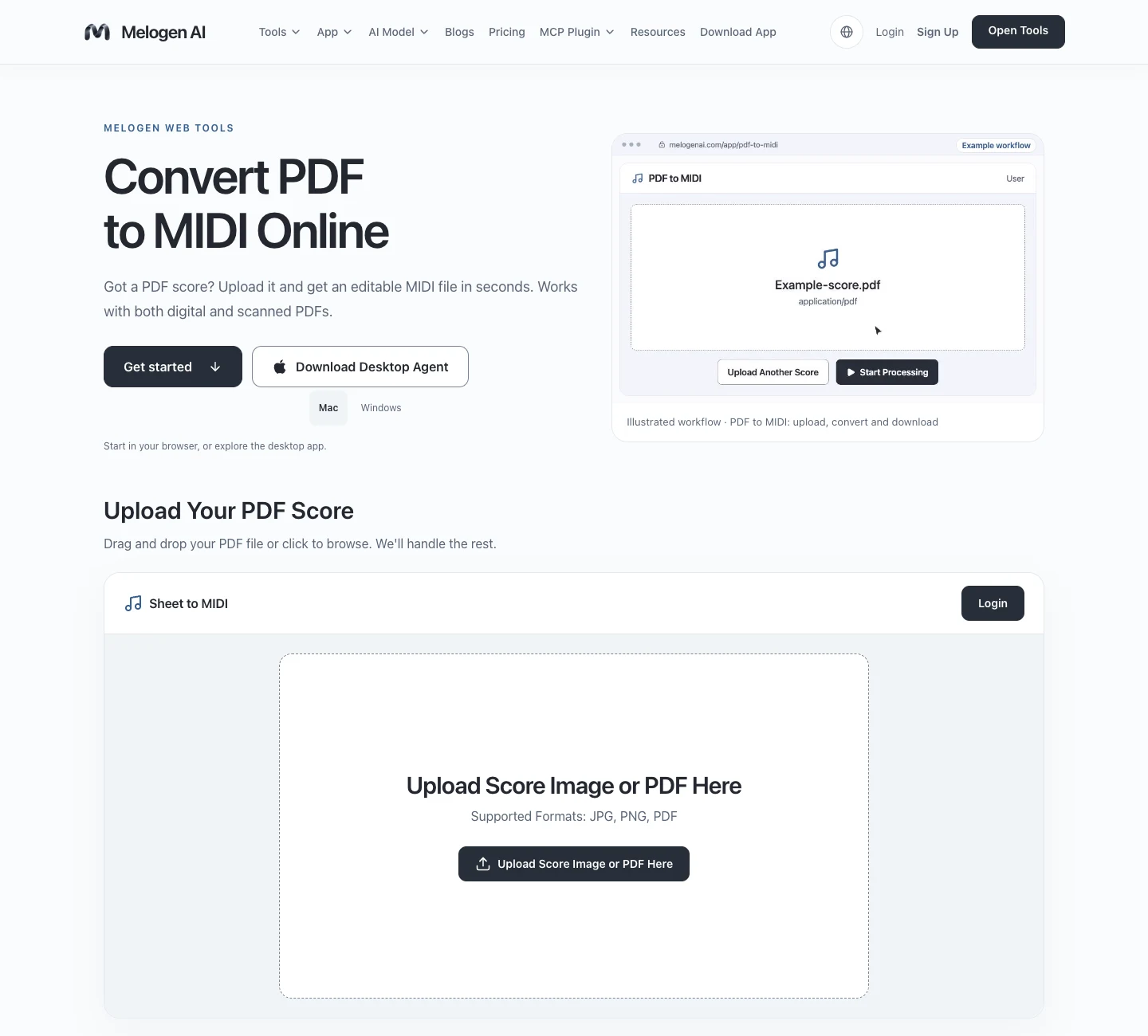
Melogen PDF to MIDI accepts PDF sheet music through a browser workspace and provides MIDI output for further work in a DAW. It is a practical starting point when you want to upload a score without installing desktop scanning software. The page supports both digital and scanned PDFs; clear printed notation remains the sensible starting material.
The useful distinction is the destination: choose MIDI when you want notes to arrange, audition with virtual instruments, or edit in a piano roll. If the next task is editing notation, use the separate PDF to MusicXML workflow.
Conversion depends on account and credit availability, so check the allowance shown in the app before committing to a batch. For a long score, try a representative page first and compare its output with the original. A clean upload does not remove the need to check rhythms, accidentals, and repeats.
Choose it for: an online PDF-to-MIDI starting point. Plan for: an internet connection, available credits, and a musical review of the output.
2. PDFtoMusic Pro for digitally exported PDFs
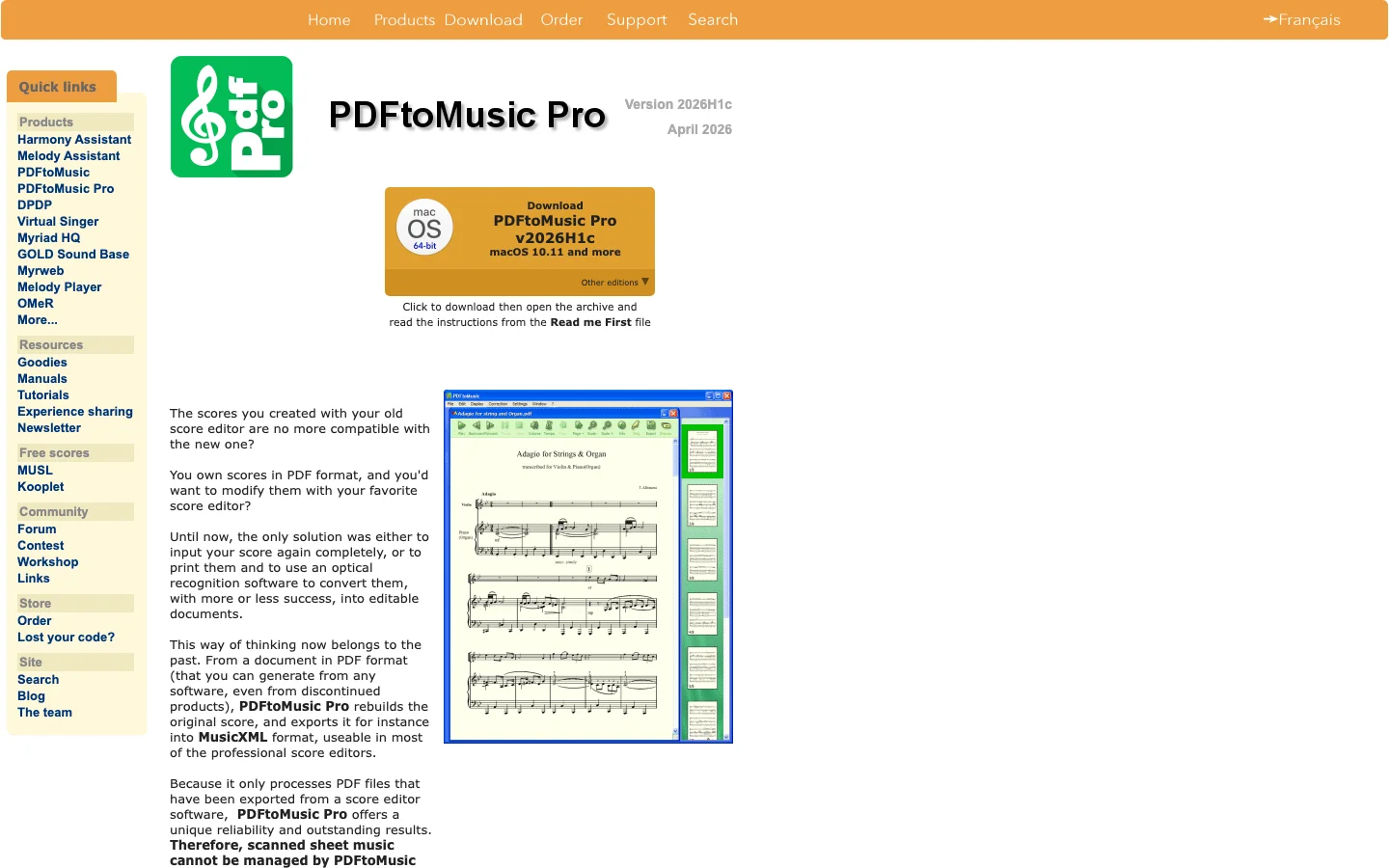
Myriad's PDFtoMusic Pro is the most specific choice in this list: it processes PDFs exported by score editors, and explicitly excludes scanned sheet music. Supported exports include MIDI and MusicXML.
That makes it worth considering when you have a clean PDF from an older notation program but no usable original project. It is the wrong choice for a photograph, photocopy, or scan of a printed score, even if those pages have been combined into a PDF.
Its free trial has a useful, concrete boundary: playback is limited to the first page and export to one page at a time. That lets you assess a short digital score before buying a license for a longer workflow.
Choose it for: notation-software PDFs. Skip it for: scanned pages; this is an input incompatibility, not merely a possible accuracy reduction.
3. Audiveris and MuseScore Studio for a free desktop route
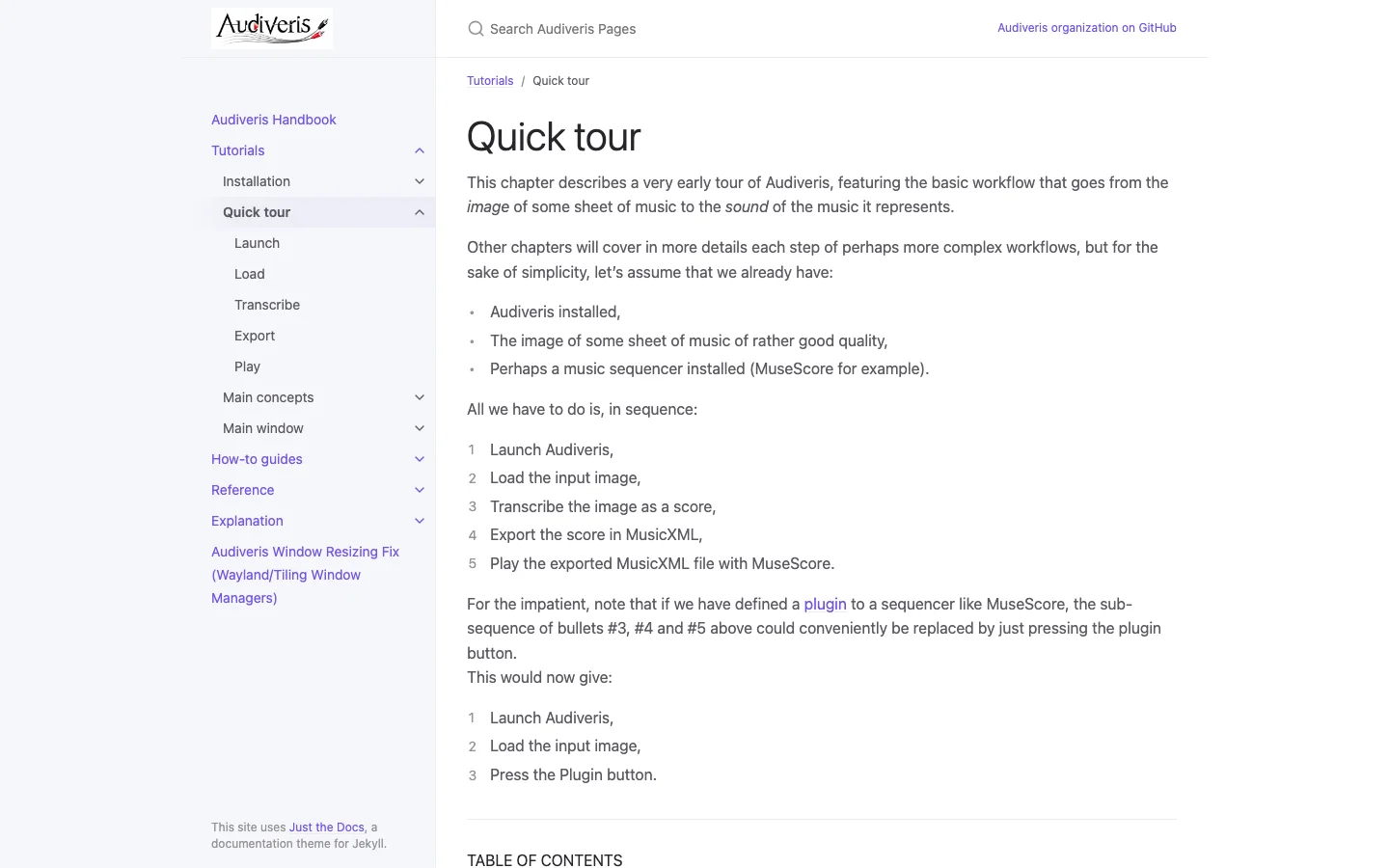
Audiveris is an open-source OMR application. Its export workflow produces MusicXML, so treat it as the recognition stage rather than a direct MIDI downloader.
The complete route is:
- Load the scanned score into Audiveris and run recognition.
- Inspect and correct the recognized notation, then export MusicXML.
- Open the MusicXML file in MuseScore Studio and check the score.
- Choose File → Export, select MIDI, and export the required parts.
MuseScore's export documentation describes the final step. This separates recognition from notation editing and gives you an editable score before you create the MIDI file.
Choose it for: a free desktop workflow where you can spend time checking notation. Plan for: installing two applications and learning the recognition/editor handoff. MuseScore Studio supplies the editing and export stage here; it is not a second independent PDF recognition tool in this comparison.
4. PlayScore 2 for mobile PDF playback and export
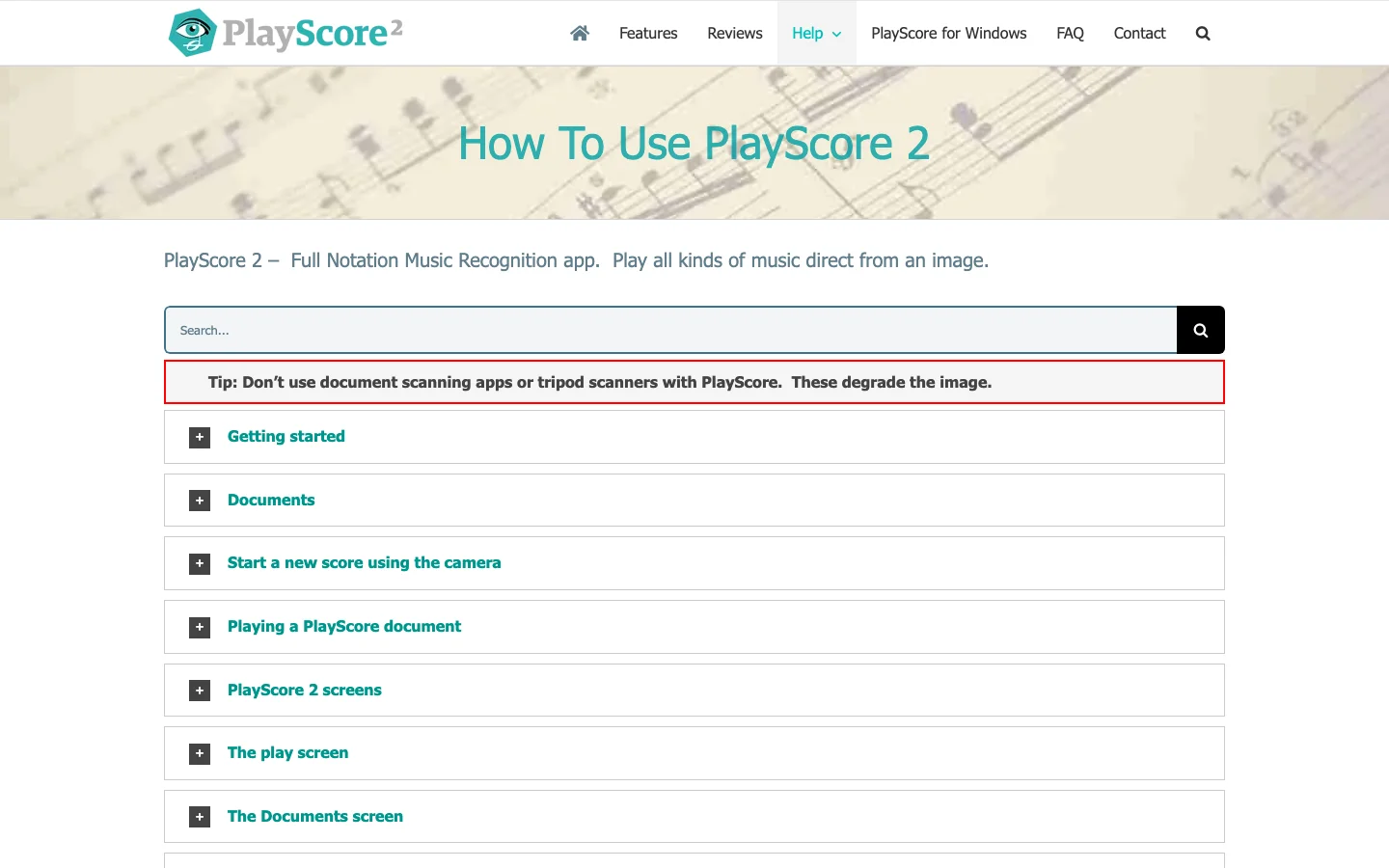
PlayScore 2's mobile guide covers importing PDF scores, listening to recognized music, and exporting it. This workflow suits a musician who wants to hear a part on a phone or tablet before moving the result into another application.
The subscription distinction matters: the official guide requires Professional for PDF access, and the Professional feature list includes MIDI and MusicXML export. Free installation or playback features should not be mistaken for free PDF-to-MIDI export.
Choose it for: mobile score playback with an export path. Check before subscribing: that the Professional plan on your device includes the PDF and export features you need. Listen for missed notes or misplaced rhythms before treating the export as finished.
5. SmartScore 64 NE for desktop scanning and correction
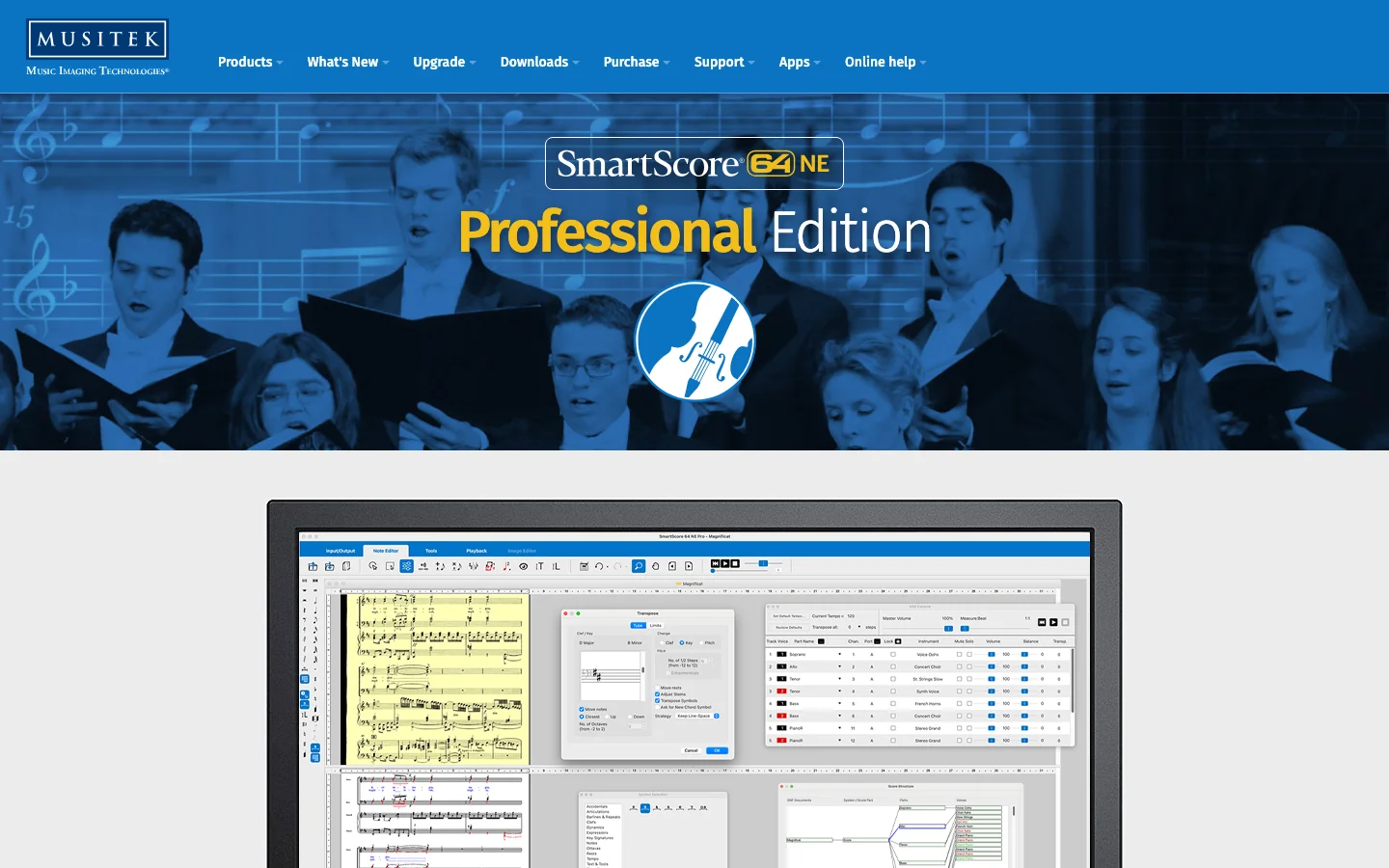
SmartScore 64 Pro NE combines score recognition with editing and playback. The important buying decision is the edition. Musitek's MIDI Edition focuses on MIDI output, while notation-oriented work may require another edition.
The official demos page explains the limits clearly: demos process PDFs but generally cannot print or save recognized music. Two MusicXML trial conversions are allowed, except in MIDI Edition. This is therefore not a free MIDI-export route.
MIDI Edition also omits chord-symbol, guitar-fretboard, text, and lyric recognition. If your job is reconstructing a vocal score or a lead sheet rather than extracting playable notes, compare editions before purchasing.
Choose it for: a desktop recognition-and-correction workflow. Check first: edition-specific output and notation support, not just whether the product name includes “MIDI.”
6. PhotoScore & NotateMe Ultimate for a Sibelius workflow
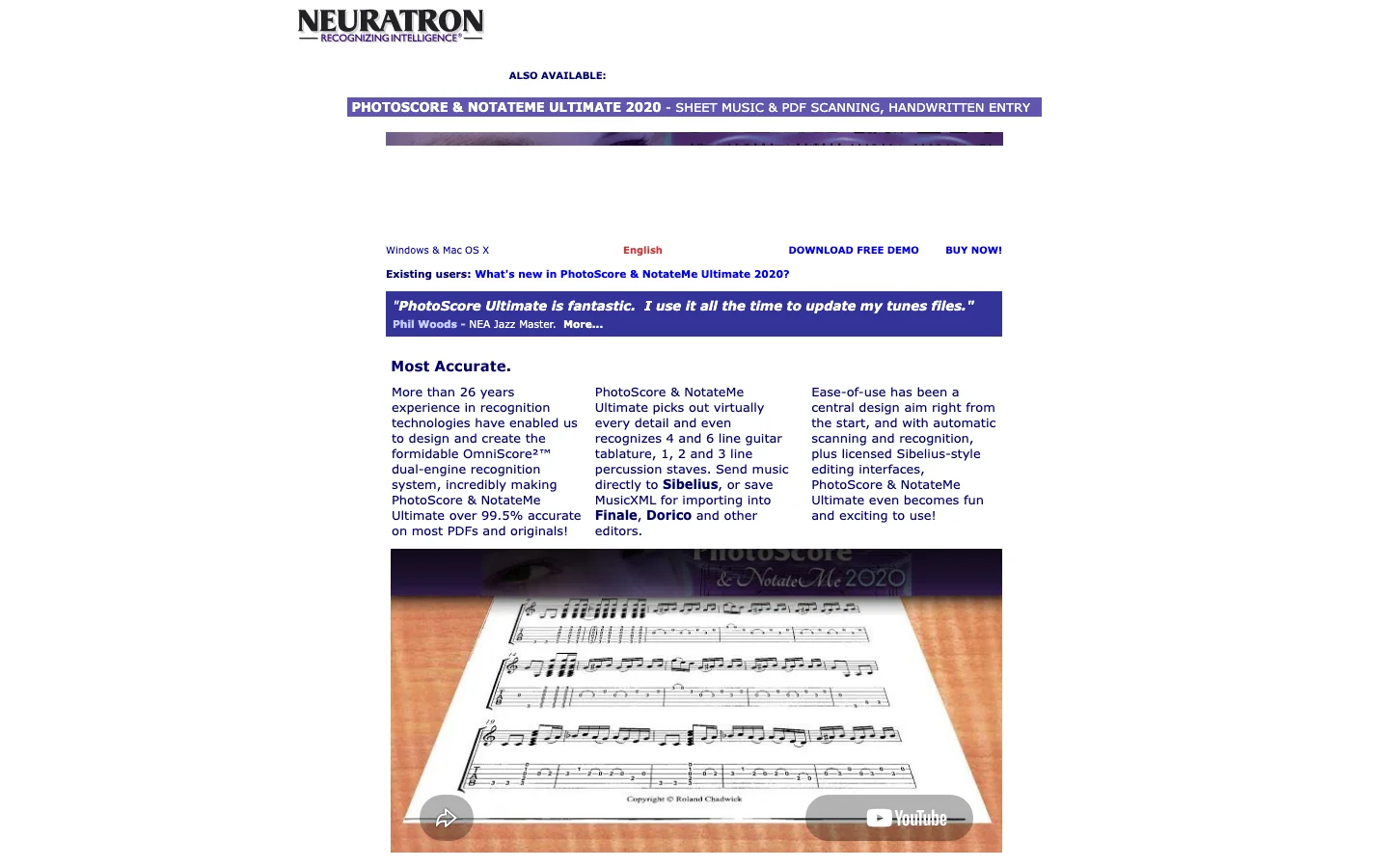
Neuratron PhotoScore & NotateMe Ultimate is one product, including when discussed as a companion to Sibelius. Its official feature list covers printed/PDF music recognition, handwriting-related features, and MIDI and MusicXML output.
It is a candidate when you already work in Sibelius or need to evaluate handwriting recognition. Handwriting varies widely, so use a representative page to assess whether the recognized result is editable enough for your project.
The official demo download page states that saving is disabled. Use it to evaluate recognition and the interface, not to obtain a free export. Check the vendor's system requirements against your actual computer before buying, particularly when moving an older desktop workflow to a newer operating system.
Choose it for: scanning alongside a notation-editing workflow. Plan for: a paid license to save results and careful inspection of handwritten input.
Which PDF to MIDI options are actually free?
For an ongoing free desktop workflow, the clearest route here is Audiveris → MusicXML → MuseScore Studio → MIDI. The tradeoff is setup and correction time.
For a digital PDF exported from notation software, PDFtoMusic Pro's trial can export one page at a time. That is useful for a short score, but it does not solve scanned-PDF conversion.
The other free-entry routes serve different purposes. PhotoScore's demo disables saving, SmartScore's demo does not save MIDI, and PlayScore's PDF/export workflow requires Professional. Melogen conversion depends on the account's available credits. Check the output restriction before processing a whole piece: being able to open or hear a score is not the same as being able to download its MIDI.
Choose MIDI for production and MusicXML for notation
MIDI carries musical events for playback and sequencing. Choose it to change instruments, move notes in a piano roll, or build an arrangement in a DAW. It does not preserve the page's visual engraving, and its sound depends on the instrument used to play it.
MusicXML is the better intermediate format when you need to inspect written rhythms, voices, lyrics, or score layout in a notation editor. It aims to exchange notation rather than reproduce a recorded performance. See the PDF to MusicXML guide for that workflow.
For example, if a scanned piano score has a wrongly interpreted triplet, correct it in notation before exporting MIDI. If the notes are right but the piano sounds poor in your DAW, change the virtual instrument; rerunning OMR will not fix an instrument-sound problem.
Check the conversion before importing a full score
Use the same representative page when comparing tools. Include a dense passage, a rest, an accidental, and any rhythm that matters to your arrangement. A sparse opening page can hide problems that appear later.
| Check | What to compare with the PDF | What to do if it fails |
|---|---|---|
| Pitch | Clefs, key signatures, accidentals, octave changes | Correct the notation or affected MIDI notes |
| Rhythm | Notes and rests per bar, tuplets, ties | Correct durations before arranging |
| Parts | Staff assignment and instrument separation | Check tracks and voices in the destination editor |
| Structure | Repeats, endings, pickup bars, page joins | Confirm the intended playback order |
| Playback | Tempo, note lengths, instrument sounds | Separate recognition errors from playback settings |
For a scan, straighten the page and keep every staff fully visible. Rescan a blurred source when possible; increasing an already blurry image's dimensions does not restore note detail. Measure the time needed to correct the result, not just the time taken to generate a file.
Frequently asked questions
Can any PDF be converted to MIDI?
A score PDF can be a candidate, but a text document, guitar chord chart without written notes, or image without readable notation does not provide the same input. Match the converter to the document: PDFtoMusic Pro requires digitally exported score PDFs; scanned pages need a suitable OMR workflow.
Can I convert handwritten sheet music to MIDI?
PhotoScore & NotateMe Ultimate lists handwriting-related capabilities. Test a representative page because staff alignment, note shapes, and corrections on the manuscript affect readability. Do not assume a tool that accepts printed PDFs also supports handwriting.
Why does the MIDI sound different from the original music?
MIDI is not an audio recording. It triggers the sounds available in your player or DAW. Check whether the pitches and timing are wrong, or whether the instrument and expression simply differ from the performance you expected.
Which converter should I start with?
Start with Melogen for a browser workflow, PDFtoMusic Pro for digitally exported notation PDFs, or Audiveris plus MuseScore Studio for a free desktop route. Choose PlayScore for mobile use, and compare SmartScore and PhotoScore when you want a dedicated desktop recognition workflow. In each case, validate one representative page before processing the complete score.
About the author

Zhang Guo
Composer - AI Product Manager
AI product manager and digital marketing consultant with a background in music. Creativity is the bridge between rhythm and logic, where musical intuition and mathematical precision can coexist in every meaningful product decision.
Follow on X